
Walkout AI has 3 cuts from one festival reference. All keep the same setting and use your photo for identity and outfit. Choose by the look you want in the generator.
Compare the 3 dances
Same routine and sound in every one; the place, the light, the length and the original clip differ.
| Dance | Scene | Length | Original on TikTok |
|---|---|---|---|
| Backstage Entrance | a sunlit festival runway reached from a shaded backstage area | – | 16.7M plays · 1.8M likes @showorldwide |
| Crowd Runway | the long outdoor festival runway surrounded by the audience | – | 16.7M plays · 1.8M likes @showorldwide |
| Runway Finale | the far end of the festival runway in warm daylight | – | 16.7M plays · 1.8M likes @showorldwide |
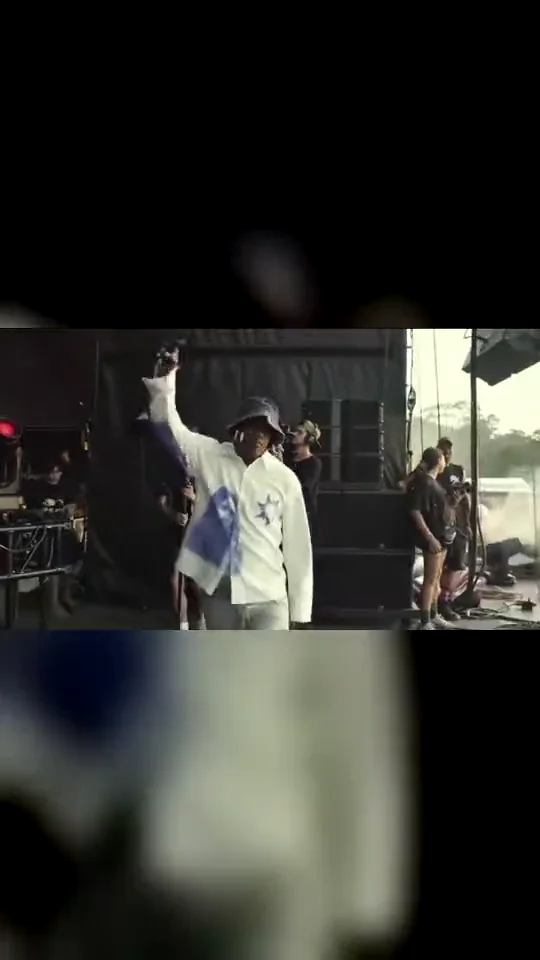
Backstage Entrance
16.7M plays 1.8M likes @showorldwide
Start close enough to see the face before the camera follows the performer into daylight. This cut covers the first 15 seconds of the reference, from the shaded backstage area to the first high steps down the runway. Your photo supplies the person and outfit; the festival setting stays in the scene.
Tips for the backstage entrance
- Use a clear face with your hair and shoulders visible.
- Show your actual outfit; a full-body photo gives the model more clothing detail.
- Choose 16:9 to keep the stage and crowd on both sides.
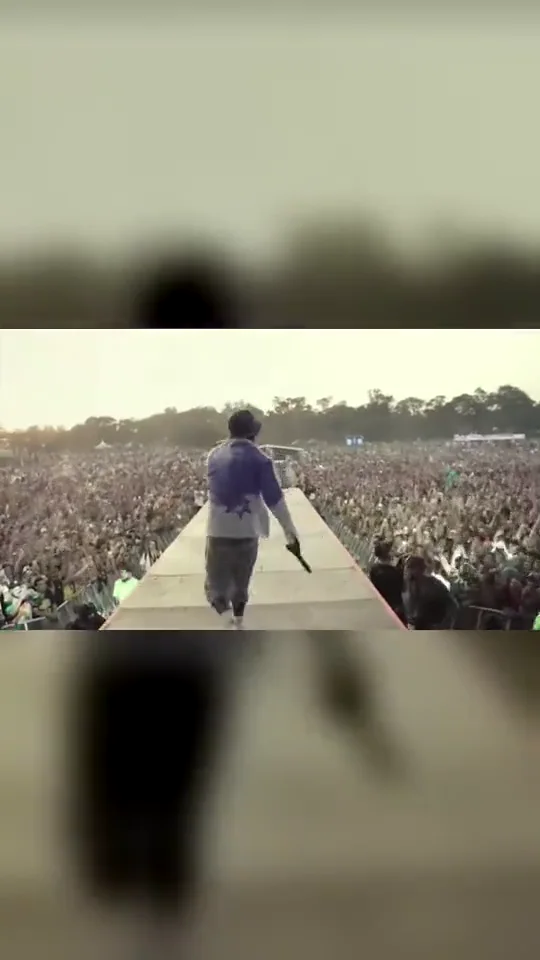
Crowd Runway
16.7M plays 1.8M likes @showorldwide
This middle cut starts as the performer turns toward the audience and follows the high steps down the runway. It uses reference seconds 6 to 21, with no splice. The wide crowd is the focus, so your clothing and silhouette matter as much as the face.
Tips for the crowd runway
- Use a waist-up or full-body photo to show the outfit clearly.
- Choose a photo with your natural build visible, without heavy filters.
- Keep 16:9 for the audience panorama; vertical output changes the framing.
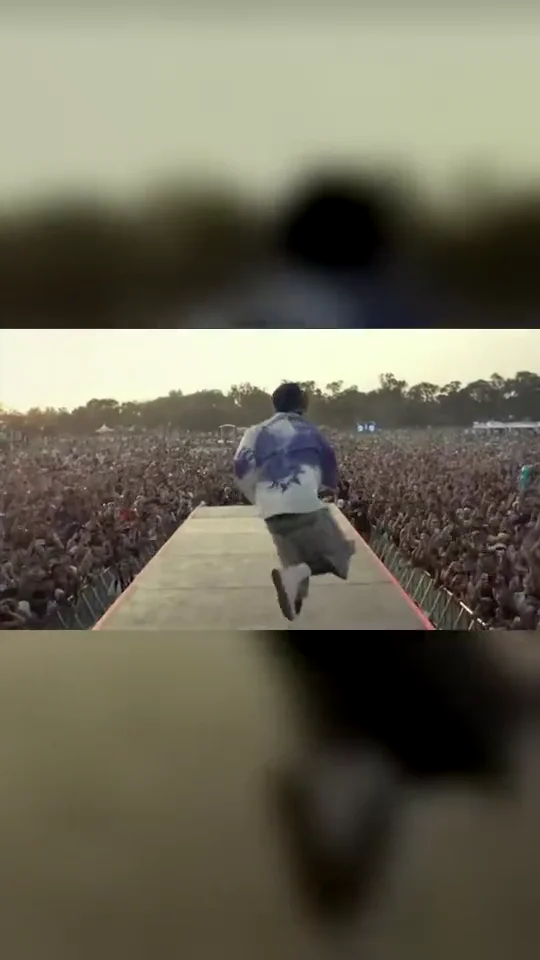
Runway Finale
16.7M plays 1.8M likes @showorldwide
Runway Finale uses seconds 12 to 27 of the original reference. It stays out on the runway for the high steps, the arms-wide moment and the return toward the camera. Pick this cut for the ending rather than the backstage entrance.
Tips for the runway finale
- Include shoes and legs in the photo when possible.
- Avoid crossed arms or objects covering your torso.
- Check hands, shoe shapes and the turn before sharing the result.